
Edit, merge and fill in PDFs in your browser, with no desktop software
A client’s form needs filling in and signing, the proposal is still in Word, and it all has to go out as one PDF. In Doxtly anyone on your team can do that in a browser tab, so PDF jobs stop waiting for the one laptop with the PDF program on it.
One PDF program, one laptop, and a queue
Northbridge Advisory, the example firm on this page, is a small consulting and training company. It has one copy of a desktop PDF program, on the office manager’s laptop, so every small PDF job lands in her inbox: a date to add, a page to take out, a form to fill in. When she is away, people print, sign, scan and hope the scan comes out straight.
This week the job comes from Halden Logistics. To become an approved supplier, Northbridge has to return Halden’s registration form, filled in, stamped and signed by a partner, in one PDF with its proposal and current prices. The form arrived by email, the proposal is a Word file on the company drive, and the prices are on page 2 of a four-page PDF.
A free PDF website could merge them, if anyone were happy to upload a form with the company’s bank details to a site they know nothing about. Here is how Northbridge does it in Doxtly instead.
How Northbridge builds the pack, step by step
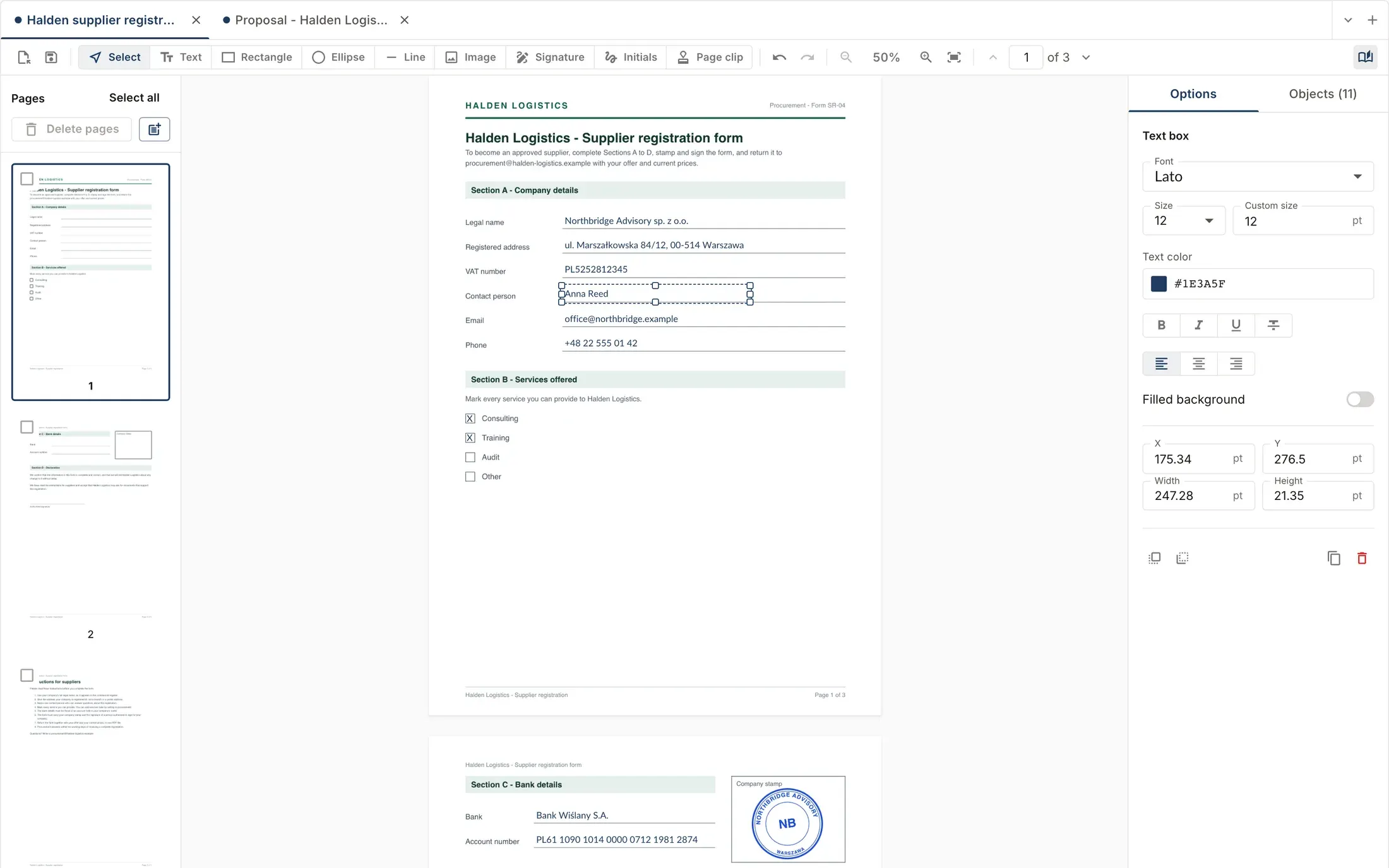
Open the form in the browser
The office manager goes to Tools, then PDF editor, and drops Halden’s form onto the page. It opens in a tab of its own. A file opened from your computer stays in your browser, with nothing uploaded.
Fill in the blanks and add the stamp
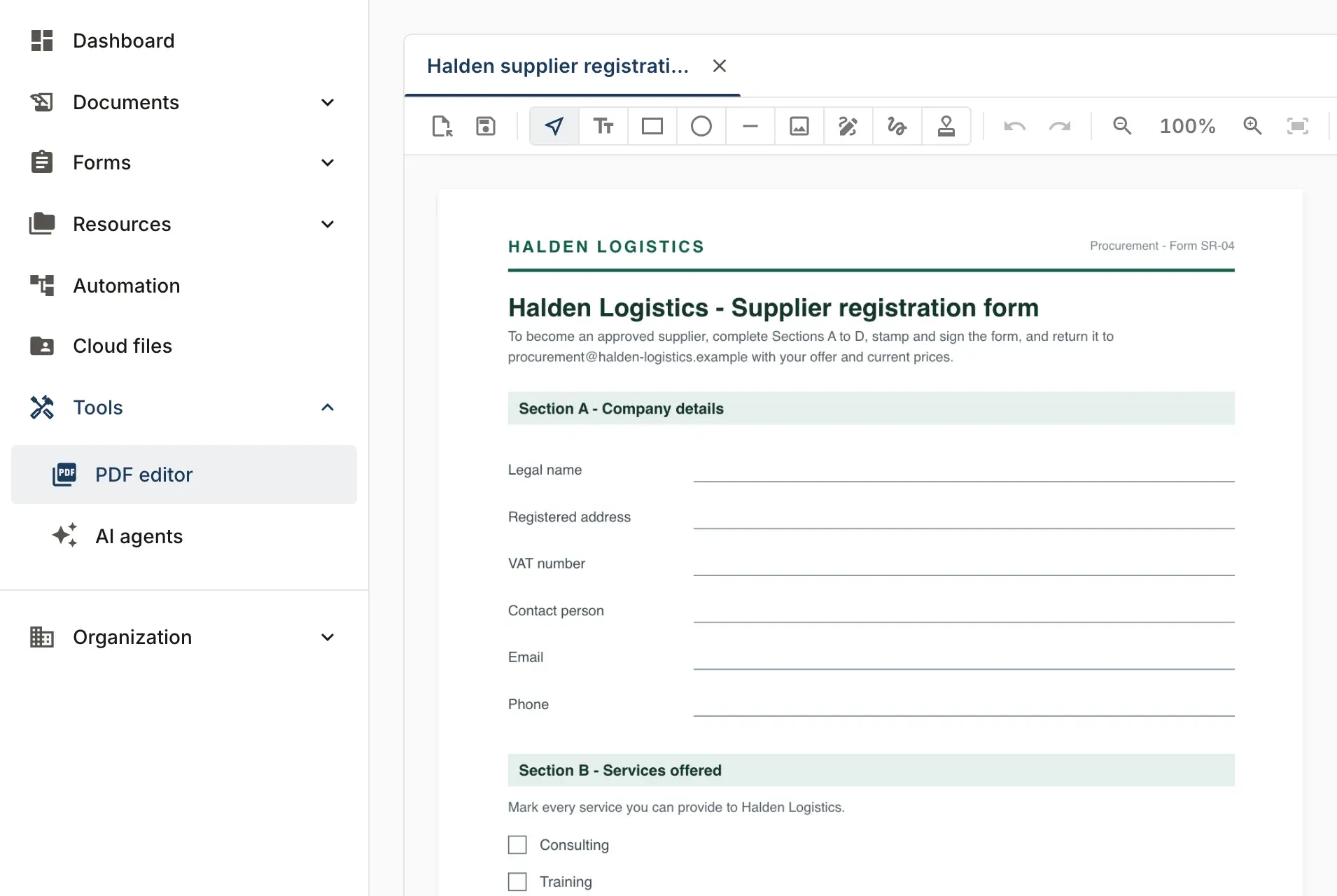
She picks Text and drags a box over each blank line: company name, VAT number, contact person, an X in the checkboxes. A new box starts in the font and size she set last, so the answers match. The Image tool puts the company stamp from the drive into the stamp field.
Turn the Word proposal into a PDF
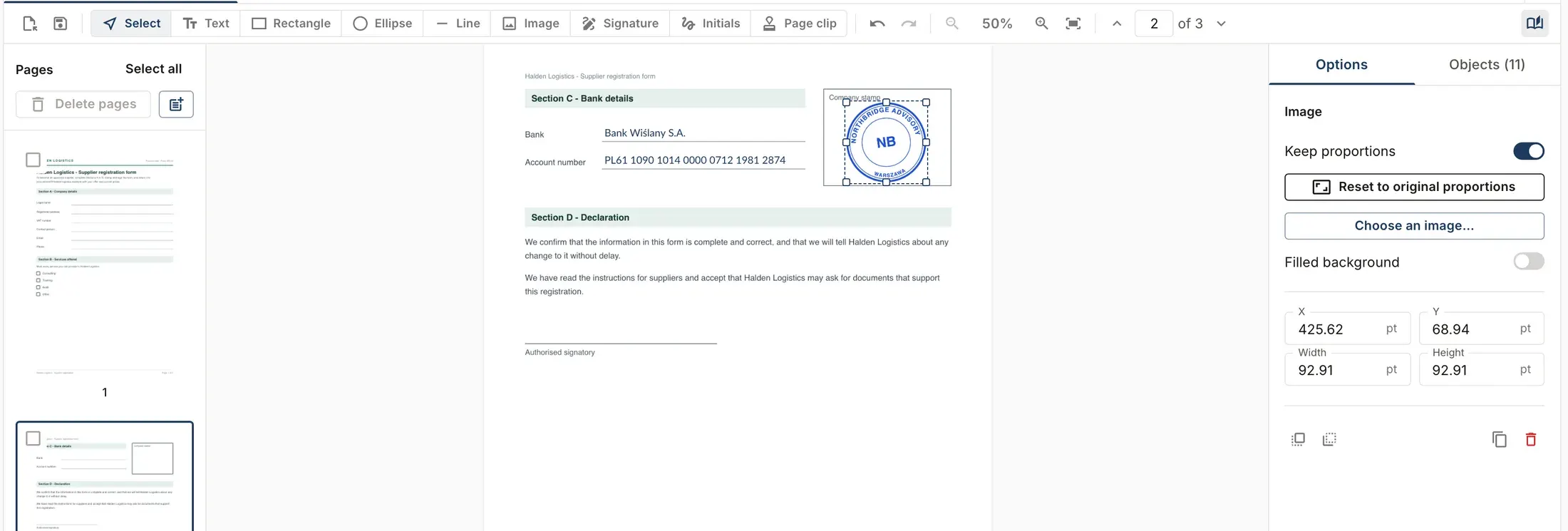
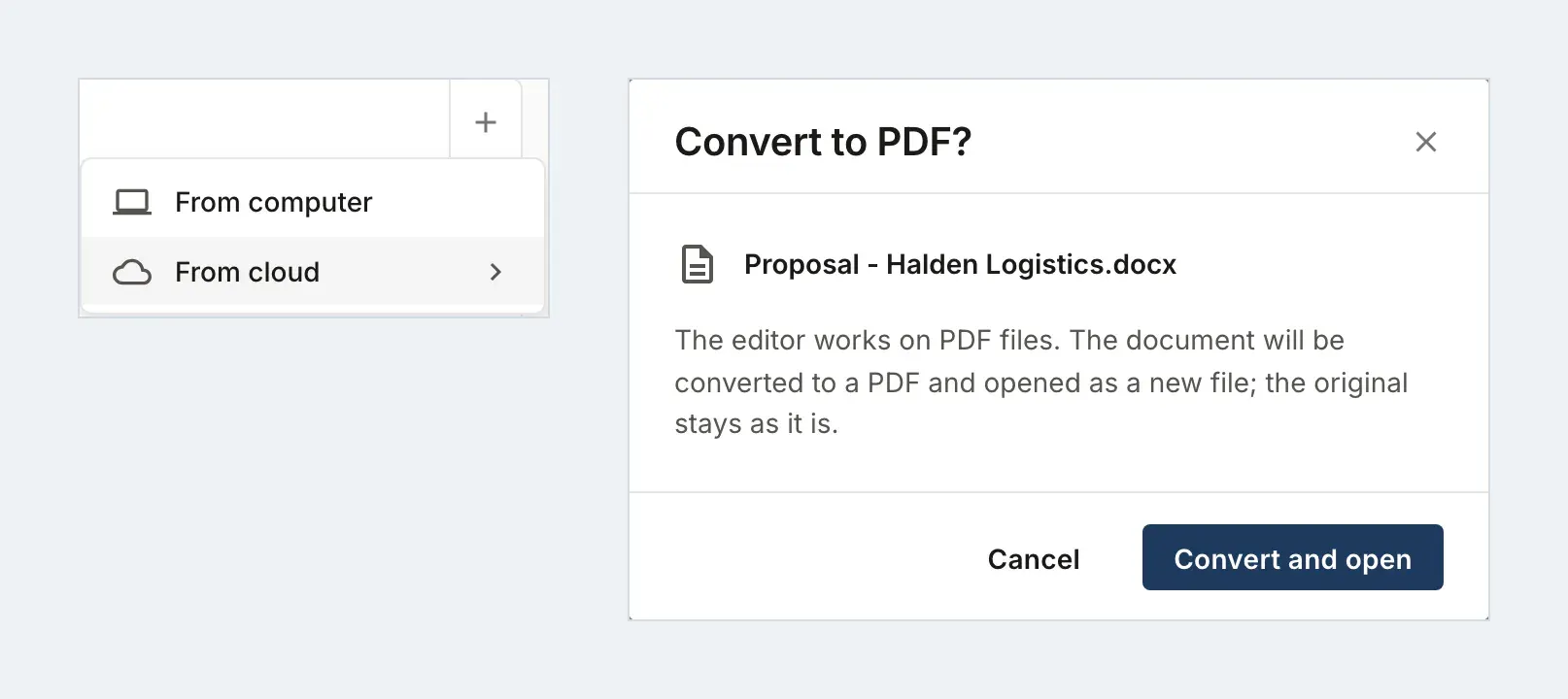
Under Open a file she chooses From cloud and picks the proposal on the company’s Google Drive. The editor asks Convert to PDF?, she clicks Convert and open, and the proposal appears as a PDF in a second tab. The Word file stays as it was.
Merge the files into one PDF
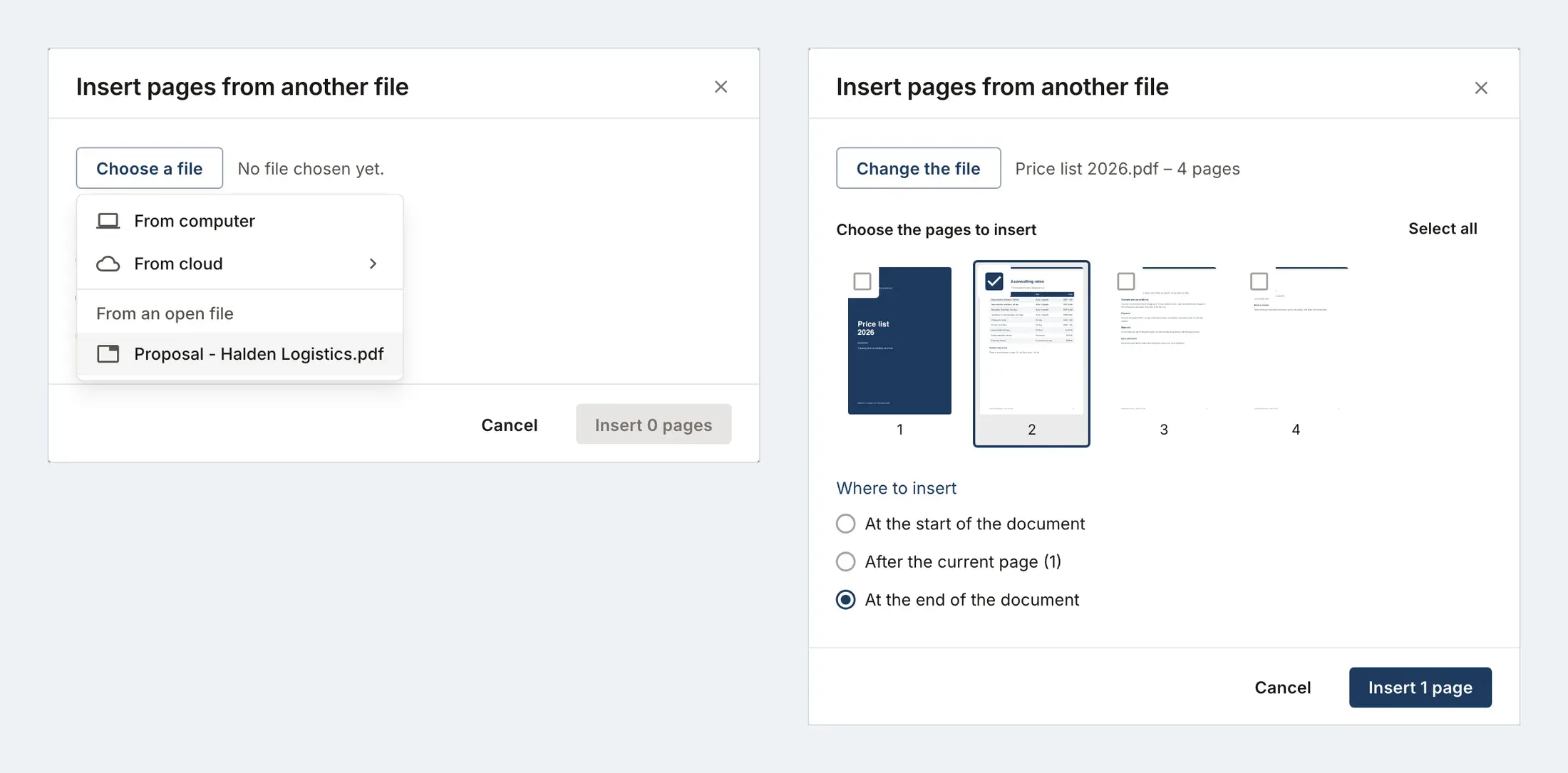
Back on the form, she opens Pages and clicks Insert pages from another file. First comes the proposal, From an open file, all six pages, At the end of the document. Then the price list, From cloud, with only page 2 left ticked.
Take out the page nobody needs
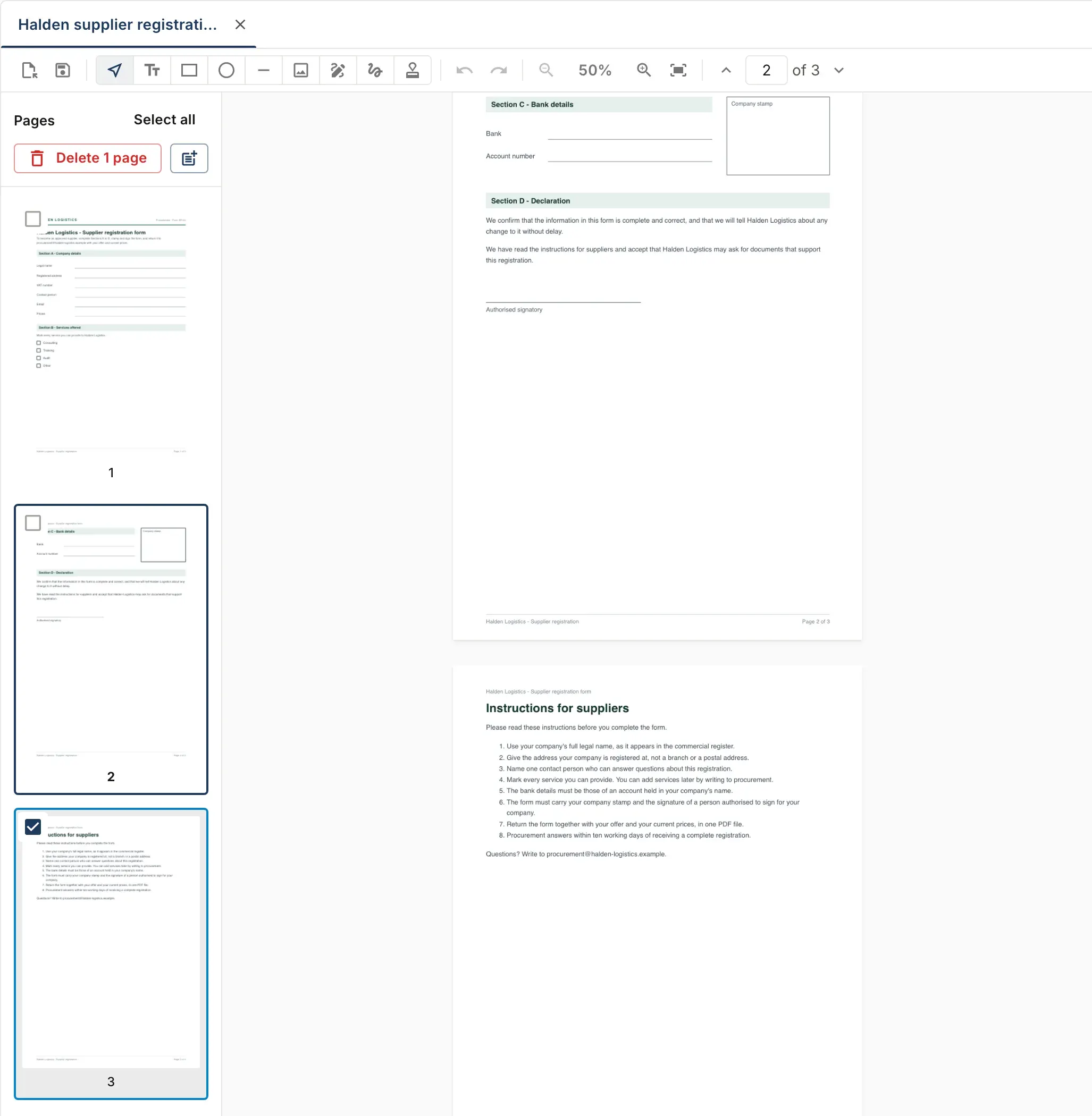
Page 3 of Halden’s form only holds instructions for suppliers. She ticks it in the pages panel and clicks Delete 1 page. If that turns out to be a mistake, Undo brings it back.
Save it in the client’s folder
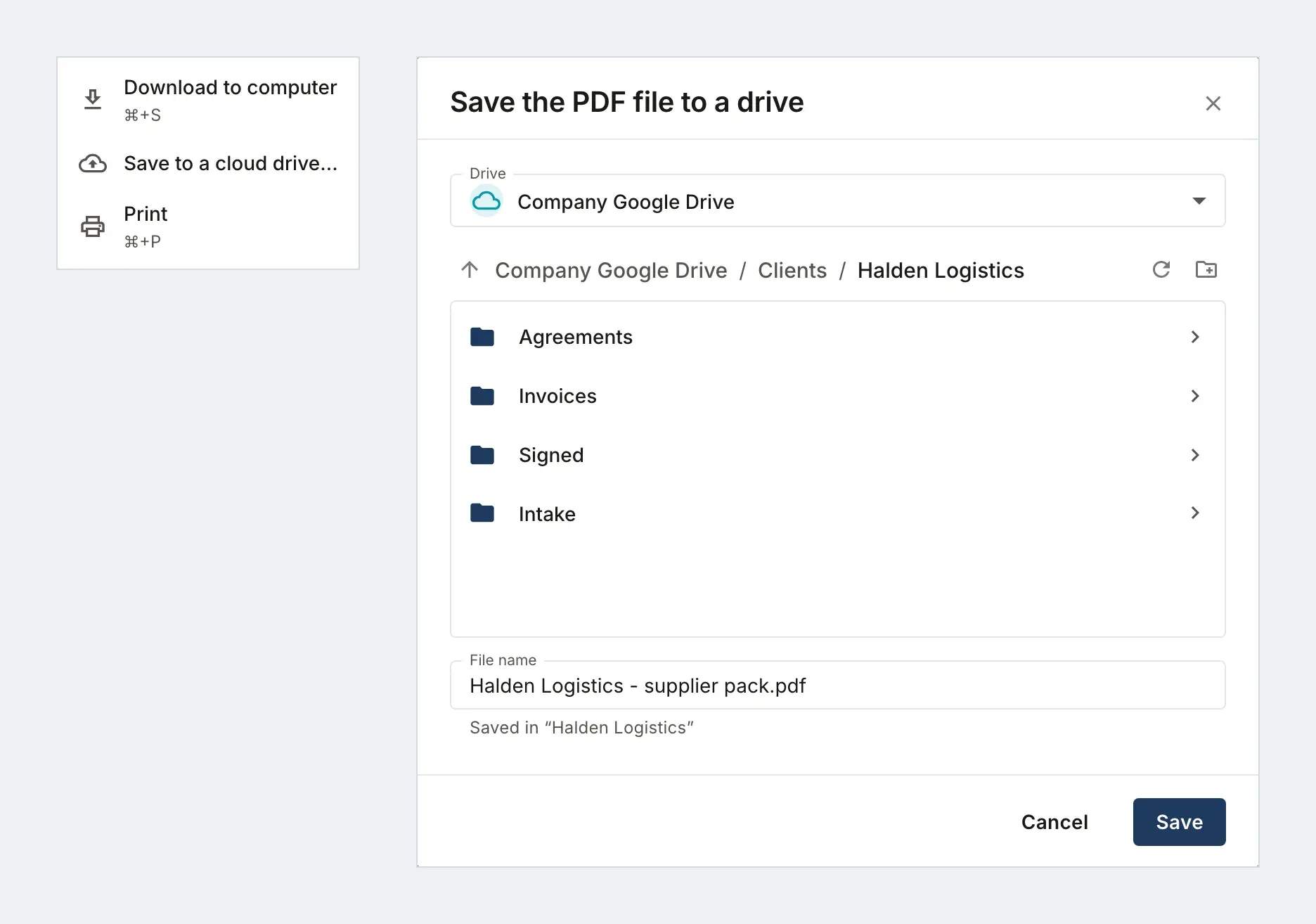
In Save or print she chooses Save to a cloud drive…, walks to the Halden Logistics folder and names the file “Halden Logistics - supplier pack.pdf”. Her text and the stamp are now part of the pages. A colleague can see the file in Cloud files straight away, so she sends no attachment.
The partner signs, and Halden gets one file
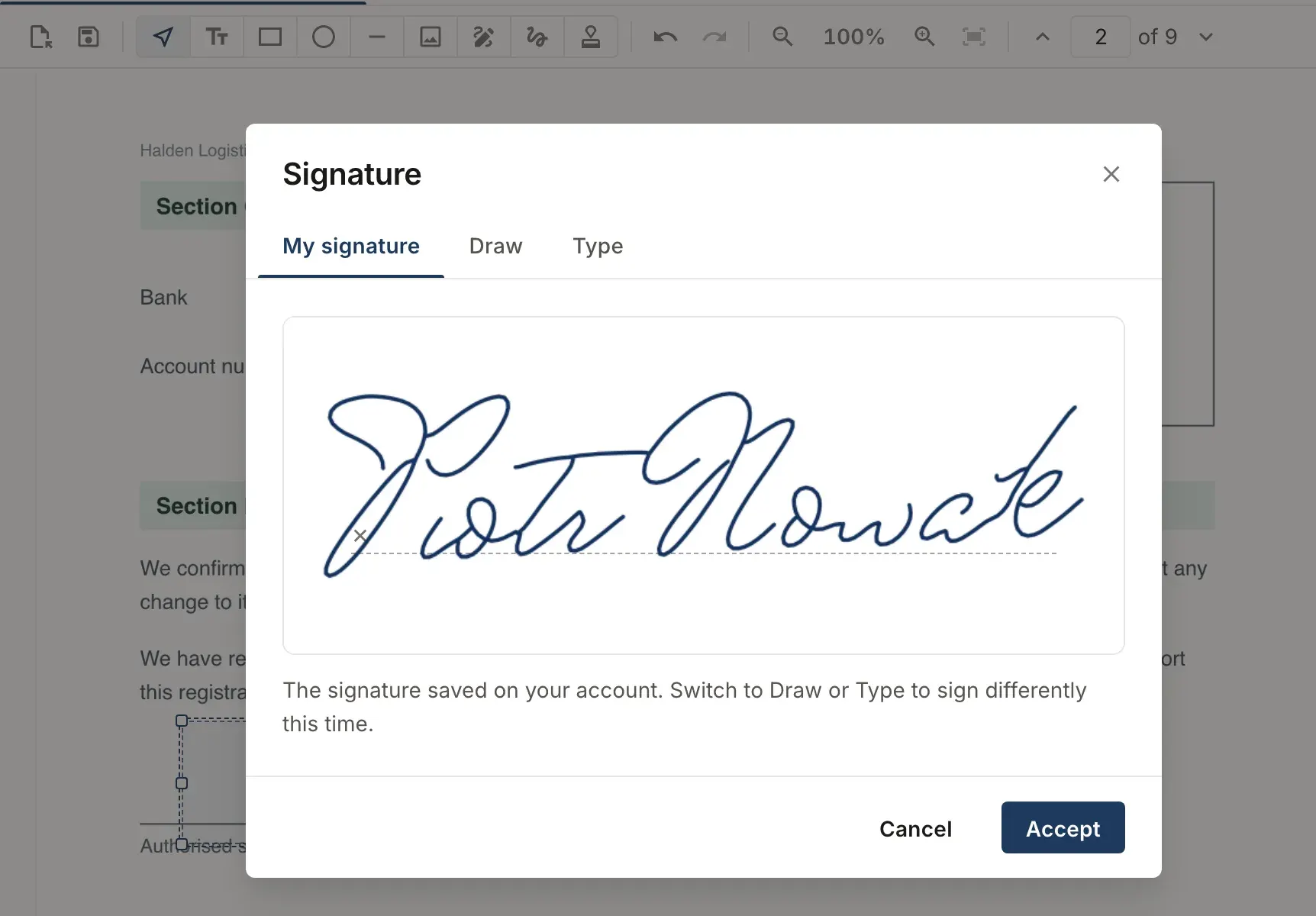
The partner finds the pack in Cloud files and chooses Edit in the PDF editor. He picks Signature, draws an area on the signature line and accepts My signature, saved on his account. He saves it back with Replace. Northbridge now has one nine-page PDF, ready to go to Halden, and nobody installed anything.
What you set up once
- A paid plan: Starter, Pro or Business. The PDF editor is not part of Free
- The Use the PDF editor permission. The built-in Administrator, Manager and Member roles already have it
- A connected Google Drive, OneDrive, SharePoint, Dropbox or Box, plus the cloud file permissions for those who open and save there. Without a drive, the editor still works on files from your computer
- A saved signature on the account of each person who signs
- Your stamp or logo as an image file, on the drive or on your computer
Other PDF jobs, and where the editor stops
- Split a PDF
- To send a client only pages 3 to 5, delete the rest and save under a new name on the drive. The original stays whole.
- Move a page
- Pages cannot be dragged into a new order, but you can insert a page again where you want it and delete the original. Do this before you add text.
- The same document, again and again
- The editor is for one-off changes. If you fill in the same document with different data every week, a PDF template does the typing for you, as in contract generation.
- A signature that has to prove who signed
- A signature placed in the editor is a picture on the page and proves nothing. When you need evidence of who signed and when, use Doxtly’s signing.
- What it does not do
- It adds to a page. It cannot retype or erase what the file already holds, rotate pages, add a blank page or open a password-protected PDF.
Questions people ask
How do I fill in a PDF form without Adobe Acrobat?
Open the form in the PDF editor and place a text box on each blank. This works on scans and on forms made to be printed. The editor does not type into a fillable PDF’s own form fields: your text sits on the page, and the fields stay in the saved file.
How do I merge PDF files online?
Open the first file, then in the pages panel use Insert pages from another file. The other PDF can come from your computer, a connected drive or another open tab. You choose which pages to take and whether they go at the start, after the current page or at the end. Managing pages has the details.
Can I add my signature to a PDF without printing it?
Yes. Draw it with a mouse or finger, type your name in a handwriting style, or use the signature saved on your account. It lands on the page as a picture, with the signature line showing through. That suits a supplier’s form. When a signature has to stand up as proof, use Doxtly’s signing.
Can I change the existing text in a PDF?
No. The editor adds to a page and cannot retype what is already there. You can place a text box with a filled background over a wrong date, but the original stays in the file underneath, so never use covering to hide confidential information.
Are my files uploaded anywhere?
A file you open from your computer stays in your browser tab, and Doxtly keeps no record of it. Files on a drive travel through your organization’s drive connection. A Word document is sent for conversion and comes straight back as a PDF, and Doxtly does not keep either. Read more in the manual.
Which plan do I need, and does each person need a license?
The PDF editor is in the Starter, Pro and Business plans, and a new organization starts with 14 days of Starter, so you can try it before you choose a plan. No plan limits how many people you invite, and working on a file from your computer counts towards no plan limit. Pricing shows the current plans.
Does it work on a tablet or a phone?
Yes. The side panels become drawers, the resize handles get larger, and you can draw with a finger. You only need a browser.
Features behind it
In the manual
Start with one document.
Take the contract you retype most often and turn it into a template. The Free plan is enough, and you need no card.