
A client address book that fills itself in
Someone sends your enquiry form, and Doxtly saves them as a contact. The next time you send them something, their details are one click away, and their page keeps their documents and your notes together.
The same name typed into every package
Northbridge Advisory, an example consulting firm, wins most of its clients through the enquiry form on its website. Until now, each enquiry was an email. Piotr, who runs sales, copied the name and number into a spreadsheet, and later typed them again into the engagement letter, and again into the package that sent it.
When a partner asked what had been signed with a client last year, the answer took an afternoon of searching mailboxes.
How Northbridge builds its client list
A visitor sends the enquiry form
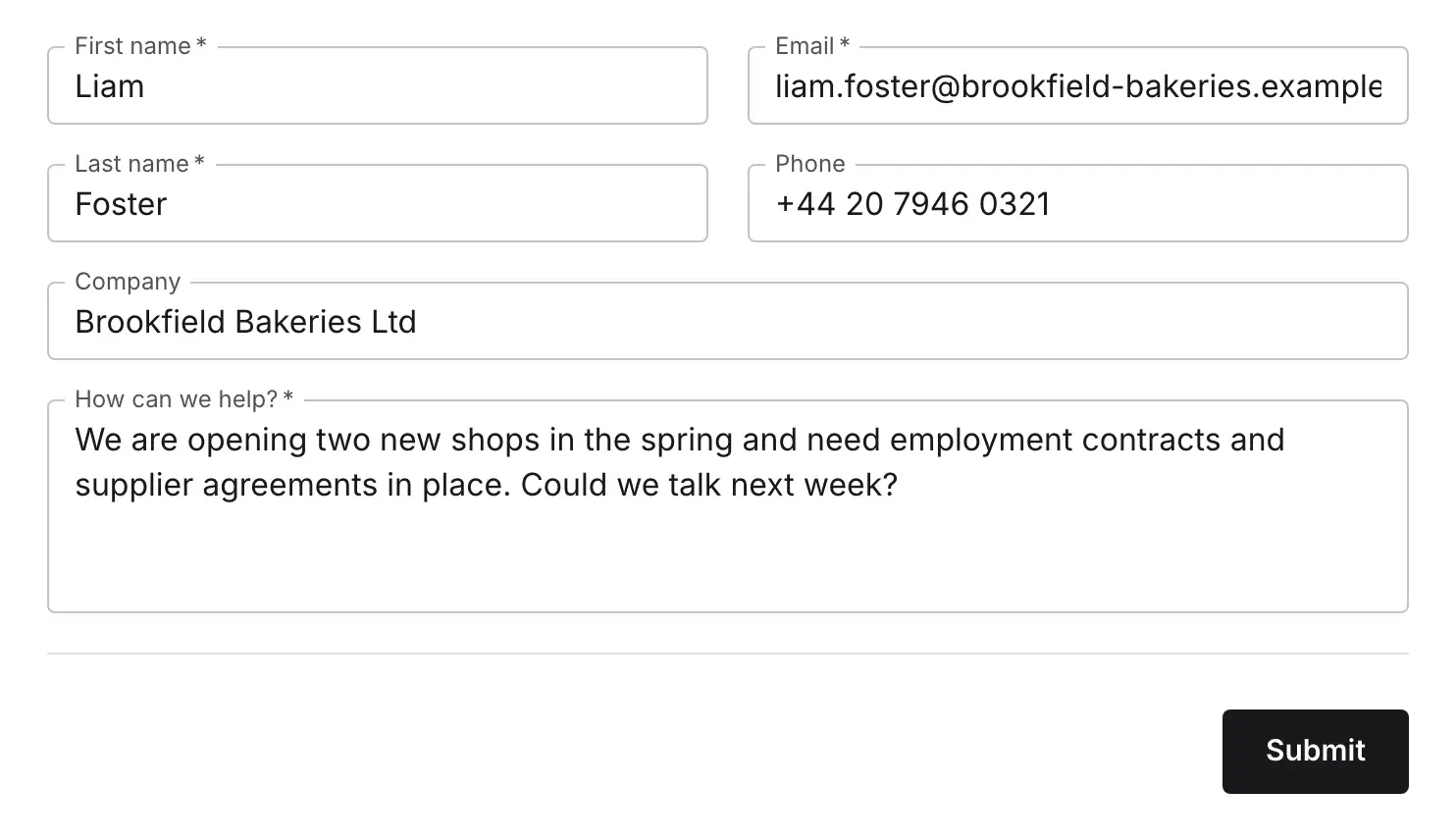
Liam Foster of Brookfield Bakeries fills in the Enquiry form on the website: his name, email, phone, company and what he needs.
A workflow saves him as a contact
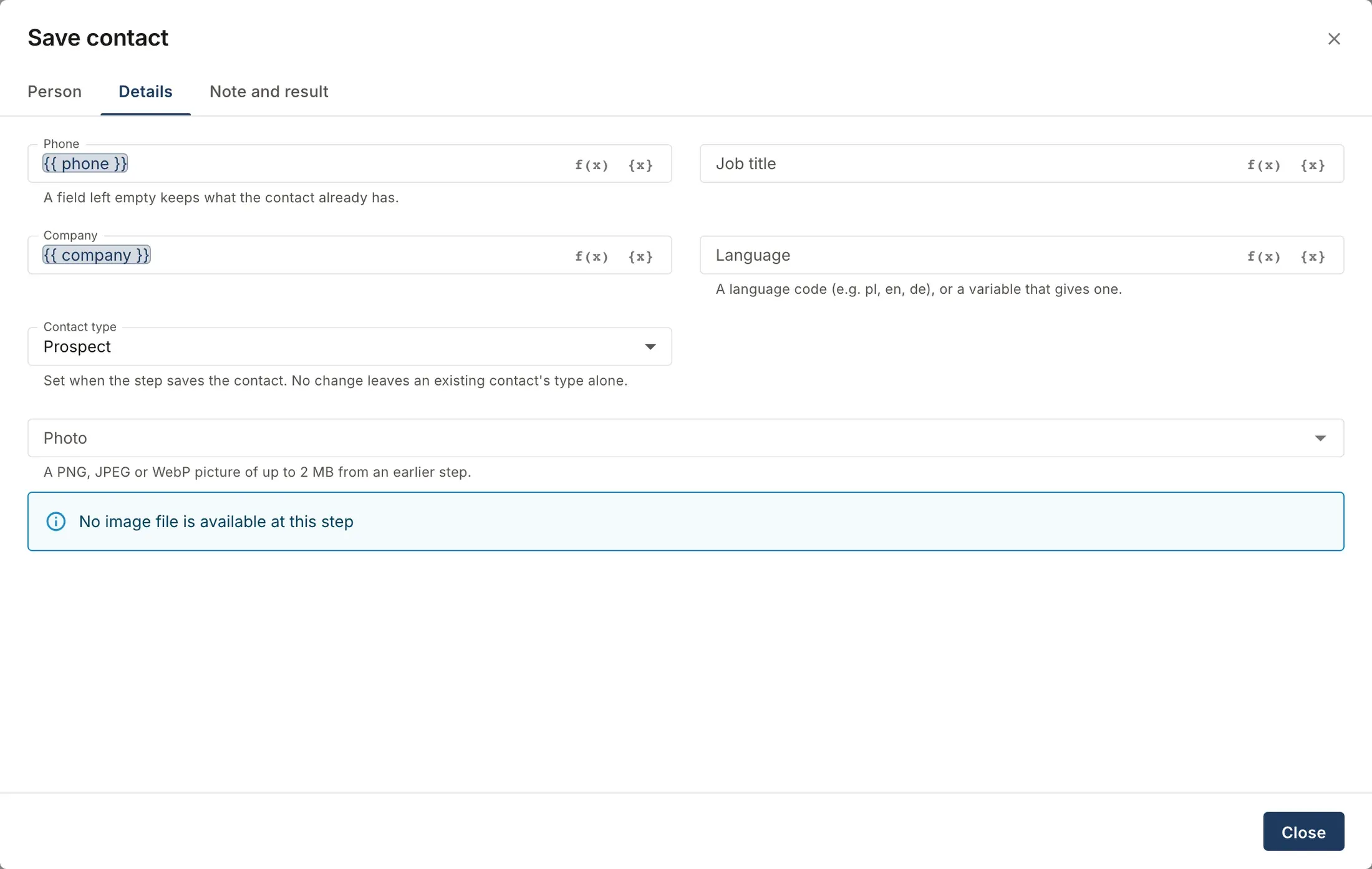
A workflow starts on the form, and its Save contact step, set to Create or update, writes the answers to the address book with the type Prospect. His company becomes a company of its own, and his message is kept as a note. If the address is already a contact, that contact is updated instead of a second one being added.
The team fills in the rest
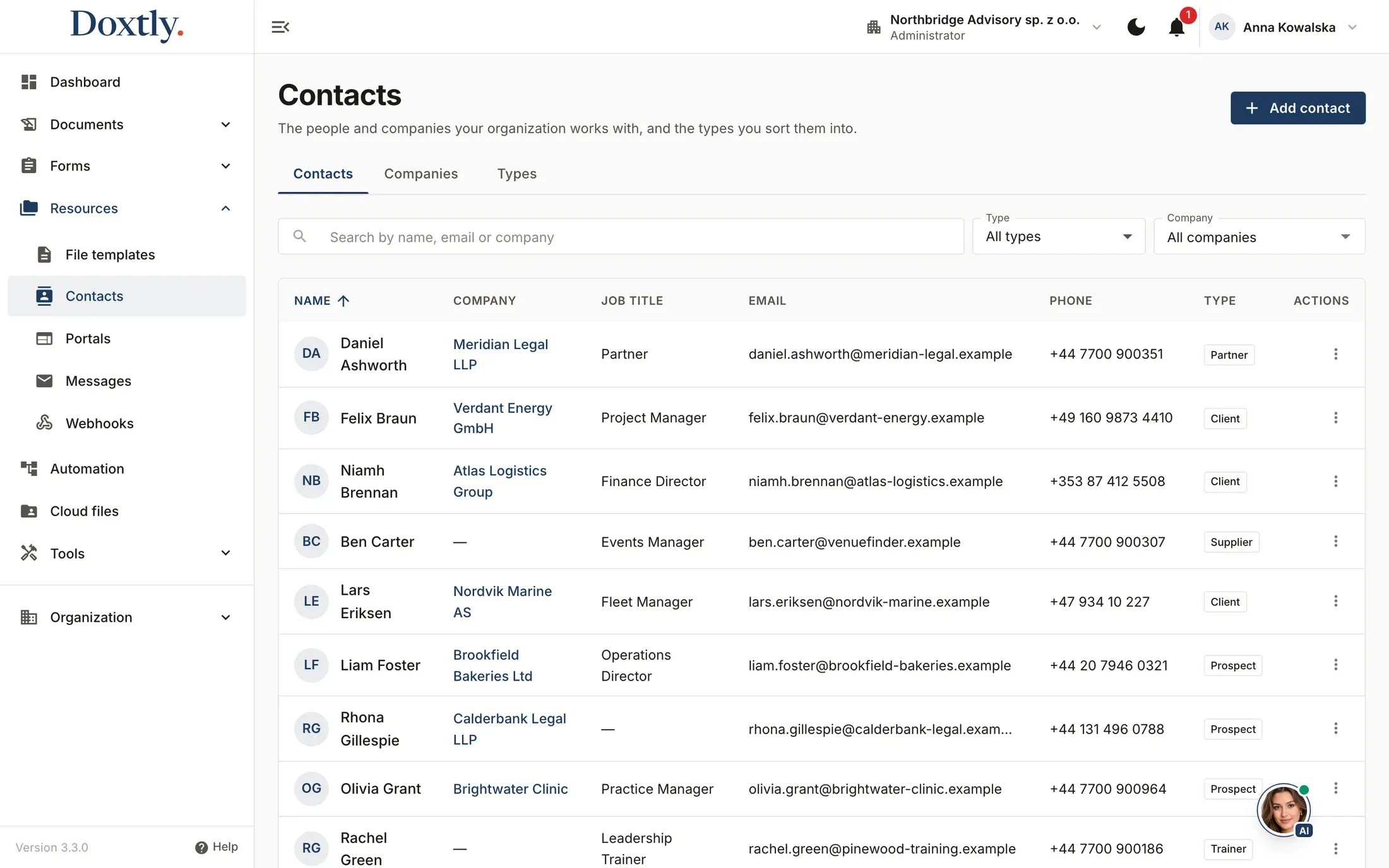
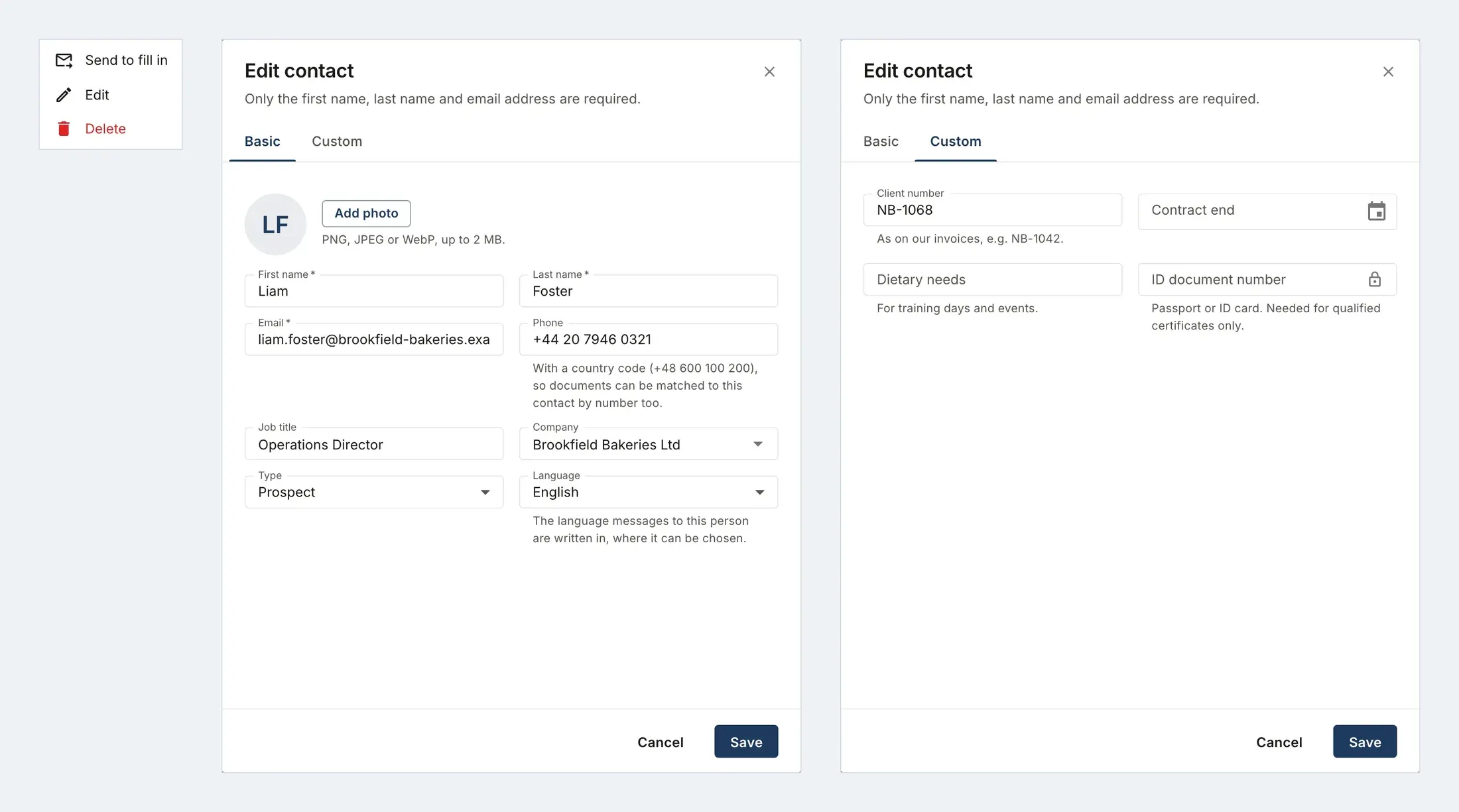
Under Resources, Contacts, Liam is on the list. After the first call Piotr opens his contact and chooses Edit in its menu: he adds the job title, and on the Custom tab the client number.
What was agreed goes in a note
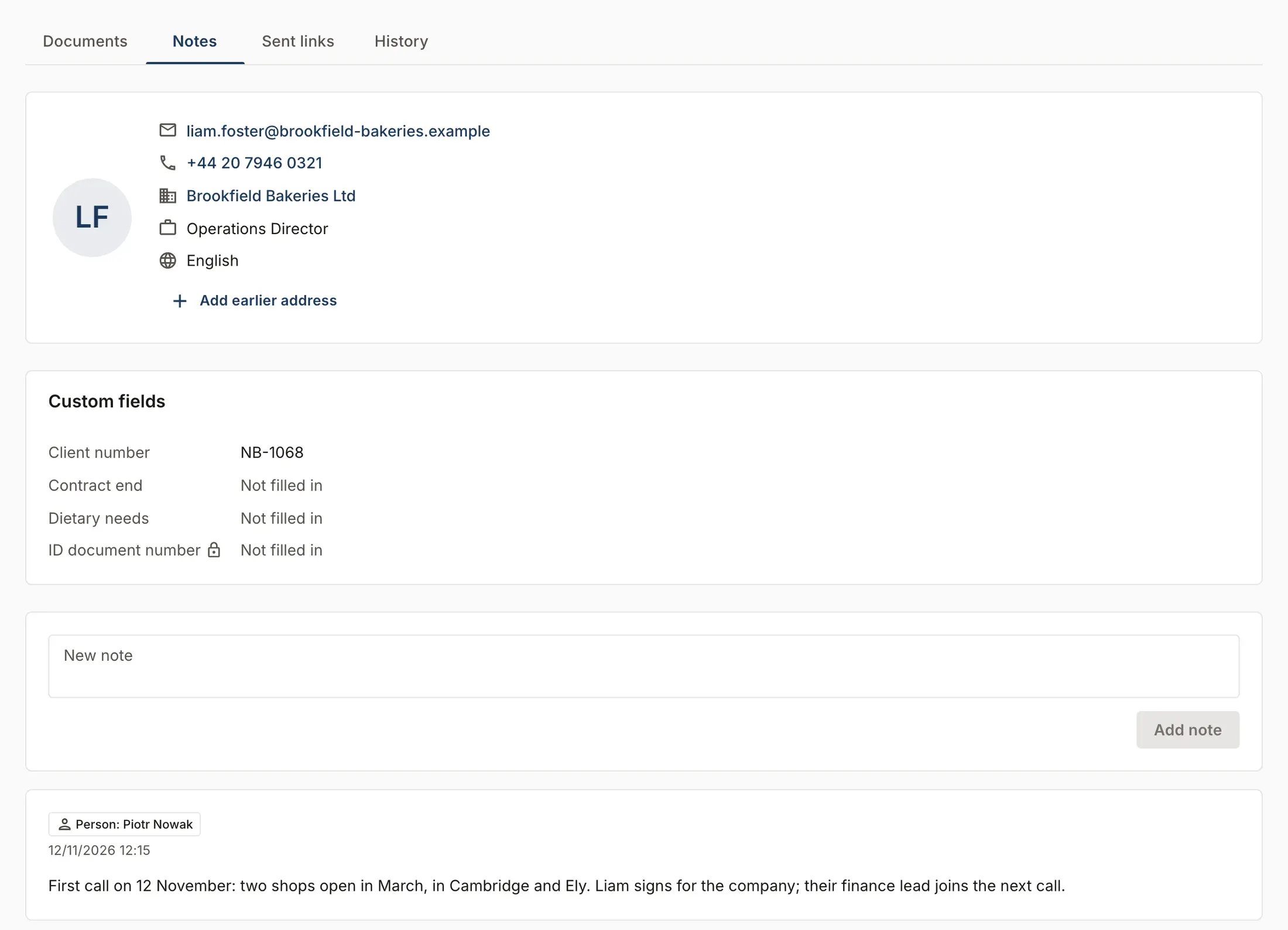
On the Notes tab Piotr types what the call settled and presses Add note. The note keeps his name and the time, and anyone who opens Liam’s contact finds it there.
His details are suggested when Piotr sends something
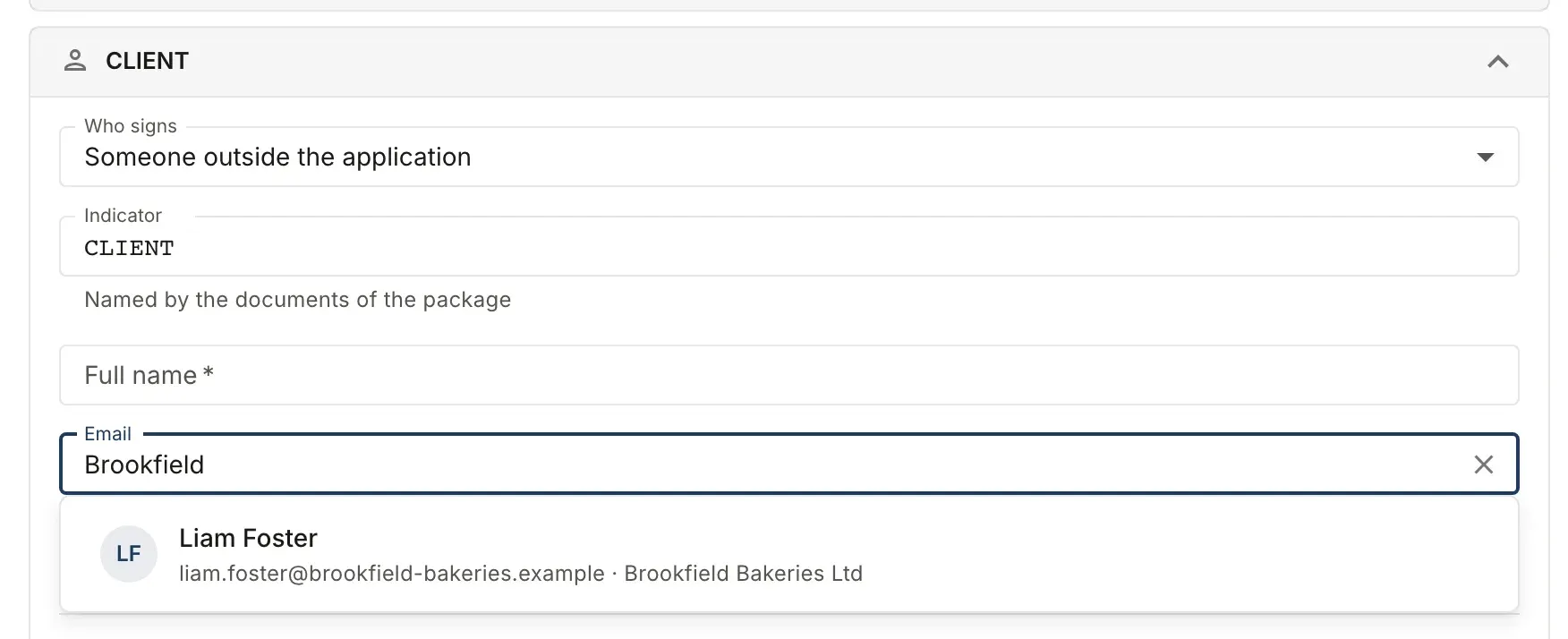
In a new engagement letter, Piotr starts typing “Brookfield” in the client’s email field, and Doxtly suggests Liam. Picking him fills in his name, phone, language and job title, and the letter takes its client details from the contact and his company. Piotr can still type any other address.
Each contact keeps its own history
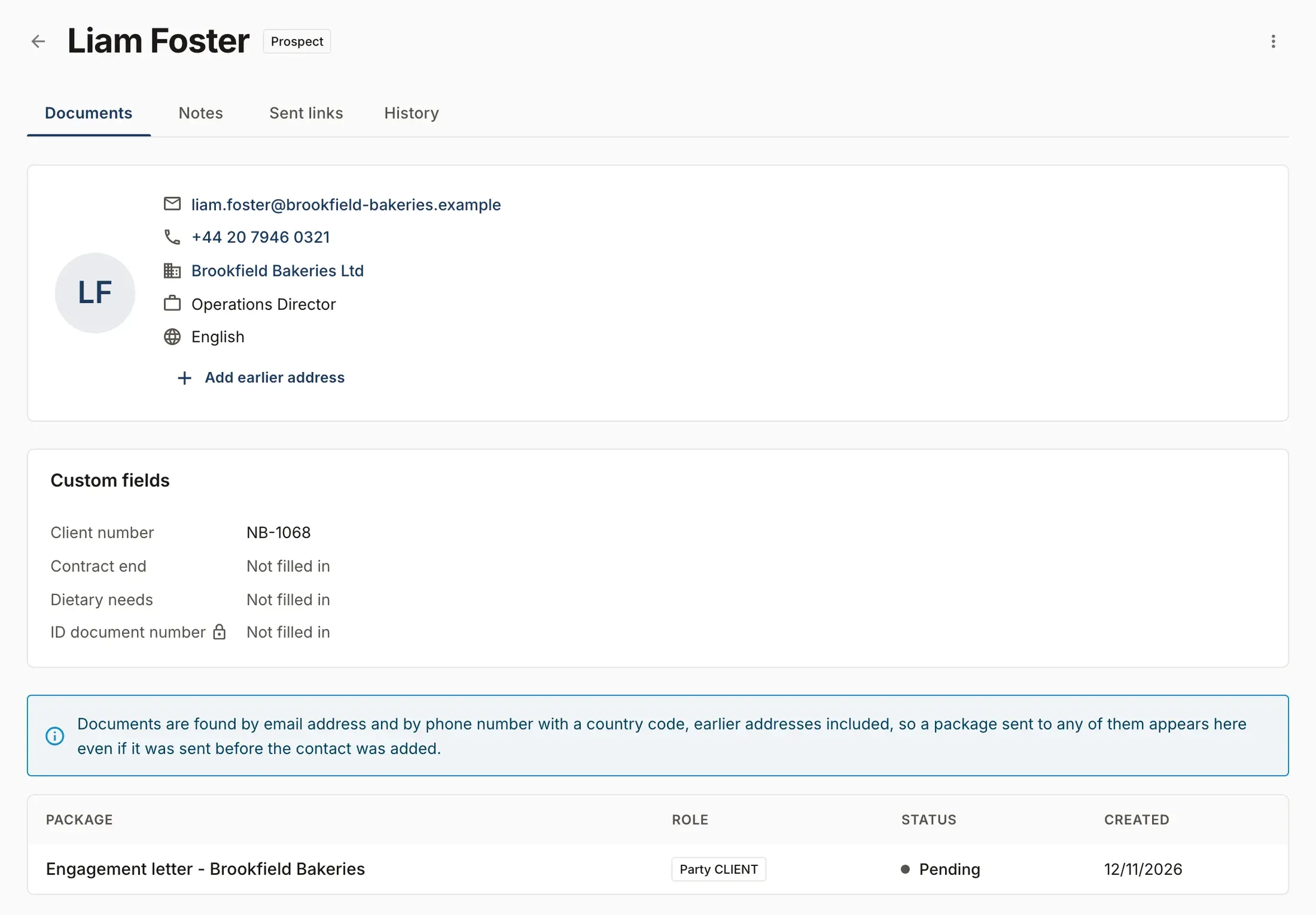
Liam’s page shows his details, the custom fields, every package he is a party to, the notes the team wrote, and on History every change to his details, with who made it and when.
What Northbridge set up once
- A form with first name, last name, email, phone and company fields
- A workflow that starts on the form and has a Save contact step
- Contact types of its own, such as Client, Prospect and Supplier
- The View contacts and Manage contacts permissions for the people who send documents
Ways to adapt it
- Welcoming people as they arrive
- A second workflow with the trigger A contact is saved can send a welcome email or tell an account manager that a client was added.
- Clients who never fill in a form
- On a package’s Parties tab, Save as contact opens the contact dialog filled in with the party’s details. Or add a contact by hand.
- Details only the client knows
- Send the contact a personal link with Send to fill in, and the form they fill in updates their contact.
Questions people ask
Do I have to type contacts in by hand?
No. A workflow can save the people who fill in a form, and a party on a package can be saved with one click.
Can a contact have two addresses?
One email address is one contact. If someone changes address, add the old one on their page as an earlier address, so older packages still appear there.
How many contacts can I keep?
Free includes 50, Starter 1,000, Pro 5,000 and Business 25,000. See pricing.
Are contacts removed by data retention?
No. They stay until somebody deletes them, and deleting one leaves the packages it was on untouched.
Start with one document.
Take the contract you retype most often and turn it into a template. The Free plan is enough, and you need no card.